


Micro SD Card formatter
3.382.00 Reviews
App Specs
- Version
- 18.0.0
- Updated On
- License
- Free
- Downloads
- 100,000+
- Developer
- zeecoder
- Categories
- Libraries & Demo
- Platform
- Android
Screenshots
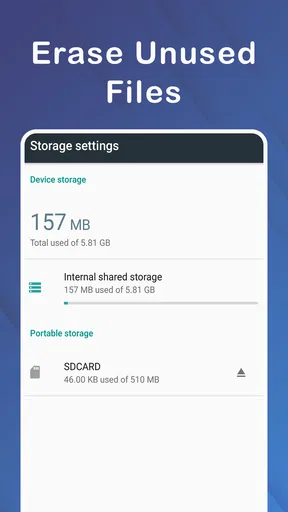
 Analysis by AppCompare
I treat a memory card formatter as a tool to use carefully, not casually: formatting can remove files, and a slick interface cannot make that risk disappear. Micro SD Card Formatter is aimed at one specific job—preparing a Micro SD card—and its appeal is the promise of a direct route through a task that can otherwise feel technical. I would consider it when I already have a backup and want a dedicated utility, rather than expecting it to repair every card problem.
Trust starts with the task, not the promise
This is a free utility from zeecoder in the Libraries & Demo category. It has an average rating of 3.6 from around 1.9K ratings, with 75 written reviews, and over 100K installs. Those figures suggest that people have tried it, but they do not tell me whether it suits a particular phone, card, or file system. I use them as context, not a substitute for checking the app’s on-device prompts before making a destructive change.
It is marked for Everyone and was released on September 29, 2023; version 18.0.0 is the current version. The practical question I would ask before tapping anything is whether the app can actually access the card on my device. Android versions and hardware handle removable storage differently, so a formatting utility’s usefulness depends on the phone recognizing the card and granting the necessary access. I would not assume that an app can overcome a card reader, adapter, or device limitation.
What to check before you grant access
A formatter needs a route to the storage it is meant to work on, but I would base any trust decision on the permission screen and choices shown on my own phone, not on guesses about what the app collects. Read each Android prompt as it appears and check that the selected storage is the Micro SD card, not the phone’s internal storage. If the target is unclear, stop and use the phone’s storage settings or another method you understand better.
Before proceeding, I would also look for any in-app explanation of the action and confirm which card is selected. A confirmation prompt is useful only if it identifies the target clearly; it is not a replacement for a backup. I would avoid granting unrelated access if Android presents a request that does not make sense for formatting, and I would not enter personal details simply to perform a local storage task unless I had a clear reason to do so.
Formatting is a data-sensitive decision
The key limitation is built into the job: formatting is not a safe way to preserve the card’s contents. Copy photos, recordings, documents, and app files somewhere else first, then open a few of those copies to make sure they are readable. If the card contains the only copy of something important, do not use a formatter as a troubleshooting experiment. Recovery after a format is uncertain, and a utility should not be treated as a backup or recovery service.
I would also separate a full card from a failing one. If files disappear, the card repeatedly disconnects, or a computer and phone both report errors, formatting may erase evidence of the problem without fixing the underlying hardware. In that situation, prioritize copying anything still accessible and consider another reader or device before attempting a format. A card that is physically unreliable may remain unreliable after it has been wiped.
Worth Reading Before You Choose

EA SPORTS FC Mobile 26 Is a Bigger Football Game, but It Takes Time

Flipboard Shows What News Apps Must Do Beyond the Feed

Switching to Android Auto Means Rethinking Your Driving Routine

Google Calendar Makes a Crowded Week Easier to Manage

Ludo King Makes the Most of the Minutes Between Plans

Baby Panda World Brings Quick Play to Modern Phones, but Its Game Library Feels Busy
Where the user remains in control
My preferred workflow is deliberate: identify the card, back it up, check the selected target, read the final confirmation, and only then begin. If the app offers choices, I would pause to understand what each one does instead of selecting an option based on labels such as “quick” or “deep.” Those terms can mean different things in different tools, and the important point is whether the result will work with the device that needs to read the card.
When I finish, I would test the card in its intended device and copy back only a small set of files first. That catches compatibility trouble before I rely on the card for a trip, a camera session, or a large transfer. If the card is meant for a camera or another device with its own formatting function, that device’s built-in option may be the better choice because it can prepare the card for the way that hardware expects to use it.
Why Use a Formatter?
First off, let's tackle why you'd need the Micro SD Card Formatter in the first place. Ever had a card that seemed to have a mind of its own, throwing errors or refusing to store data? That's where this app steps in. It cleans up your card, making it feel brand new again. No more worrying about corrupted files or limited space.
Getting Started
Installing the app is a breeze. Whether you're on Android or iOS, just head to your respective app store and download it. The interface is surprisingly intuitive. Once you open it, you're greeted with a simple menu that even the least tech-savvy person can navigate. Trust me, if I can do it, anyone can!
After launching the app, plug in your Micro SD card, and boom, the app recognizes it instantly. It gives you the option to format the card or check its current status. I really appreciate the straightforward approach. No unnecessary bells and whistles—just pure functionality.
Formatting Made Easy
Here’s where the magic happens. With just a couple of taps, you can choose to format your card. The app offers different formatting options, which is great because it allows you to tailor the process to your needs. Whether you need a quick clean or a deep wipe, it’s all there.
The speed of the formatting is another highlight. I was pleasantly surprised by how swiftly it completed the task. You know how some apps seem to take forever? Not this one. It’s efficient, and I love that about it.
Peace of Mind
The best part? The reliability. Knowing that the Micro SD Card Formatter has your back means one less thing to worry about. It’s like having a digital janitor who ensures everything is spick and span. Plus, it keeps you informed with real-time updates during the process.
Security is another biggie. The app ensures that all data is handled safely, which is crucial in today’s world. It’s comforting to know that your information won’t accidentally leak or get lost in cyberspace.
Extra Features
Aside from formatting, the app offers additional features such as performance checks and space management. Having these extra tools bundled in is a bonus. It’s like getting a little more than what you bargained for.
There’s also a neat feature that lets you monitor the health of your card over time. This proactive approach helps in spotting issues before they become big problems, saving you both time and stress.
Choosing the right moment to use it
A useful everyday case is moving a card from one purpose to another. For example, after saving camera footage elsewhere, I might want to clear the card before using it in a different device. A dedicated formatter can make that reset feel more straightforward than hunting through several system menus. Still, I would first check whether the new device has its own format command; for a card that will live in a camera, that can be the more dependable way to prepare it for that camera’s workflow.
For routine space management, formatting is usually excessive. Deleting or moving a few files is less disruptive when I want to keep the rest of the card intact. I would reserve this app for a deliberate reset, a card being repurposed, or a situation where the existing file structure is causing trouble and the contents have already been secured. That distinction helps prevent the common mistake of using a wipe when ordinary cleanup would do.
How it compares with built-in tools
The usual alternatives are the phone’s storage settings, a computer’s disk utility, or the format option on the device that uses the card. The built-in phone route is convenient when Android recognizes the card and offers the setting you need. A computer may be easier when a card reader is available and you are comfortable choosing the correct drive. Formatting in the camera or other target device makes sense when compatibility with that device matters most.
A standalone app is most appealing when its focused interface makes the process easier to follow. Its trade-off is that it adds another step and still depends on the phone’s storage access and the card being detected correctly. It is not automatically safer or more powerful just because it is a separate app. I would choose the method that clearly identifies the target and matches the card’s intended use, rather than switching tools repeatedly when a card is showing signs of hardware failure.
Practical checks that prevent avoidable trouble
Before formatting, I would note the card’s capacity and label it if I have several similar cards. That simple habit makes it easier to notice when the wrong card is selected, particularly when using an adapter or reader. I would also close apps that may be writing to the card and wait for any file transfer to finish; interrupting active storage work can leave files incomplete even before the format begins.
Afterward, test with a modest transfer rather than immediately loading the card with everything you need. Open a sample file on the target device, eject the card properly when the device supports that option, and watch for repeated read errors. These checks do not certify that a card is healthy, but they can reveal an obvious compatibility or access problem before it becomes an unpleasant surprise.
Who should use it—and who should not
I can see this being useful for someone who regularly handles removable cards, understands that formatting removes existing contents, and wants a dedicated Android utility for a clean reset. It may also suit a less experienced user if the app’s prompts on their device are clear and they take time to back up first. The straightforward purpose is a real advantage when all that is needed is to prepare a card, not manage a whole library of files.
I would skip it if I needed to recover deleted photos, preserve files while fixing an error, or diagnose a card that repeatedly disconnects. Those are different jobs. I would also avoid relying on it if the card is not clearly identified, if the phone cannot access it, or if I am unsure what an option will erase. In those cases, the phone’s own settings, the intended device’s formatter, or a careful backup-and-diagnosis process is the more sensible next step.
Final Thoughts
In a world full of apps, the Micro SD Card Formatter stands out for its simplicity and effectiveness. It’s not just about formatting; it’s about giving you peace of mind. Whether you’re a tech enthusiast or just someone trying to keep their digital life organized, this app is a must-have.
So, next time you find your Micro SD card acting up, give this app a whirl. It’s straightforward, reliable, and quite frankly, a bit of a lifesaver. Download it, try it, and join me in appreciating the small joys of a well-formatted card.
Pros
- Easy-to-use interface for quick formatting.
- Supports a wide range of SD card types.
- Enhances card performance and speed.
- Ensures data privacy with secure erase.
- Compatible with both Android and iOS devices.
Cons
- May not recover corrupted files.
- Limited advanced features for tech users.
- Requires internet for some functions.
- Occasional ads in the free version.
- Formatting deletes all data permanently.
FAQs for Micro SD Card formatter
What is the Micro SD Card Formatter app used for?
The Micro SD Card Formatter app is designed to quickly and efficiently format micro SD cards. It helps in preparing the cards for new data by wiping existing files and optimizing the card’s performance. This is particularly useful for users who frequently switch data storage devices or need to refresh their cards for better efficiency.
Is it safe to use the Micro SD Card Formatter app?
Yes, the app is safe to use, provided you download it from a reputable source. The app is designed to format your SD card safely without causing harm to your device. However, it is recommended to back up any important data before formatting, as the process will erase all existing files on the card.
Does the Micro SD Card Formatter support all types of micro SD cards?
The app supports a wide range of micro SD cards, including SDHC and SDXC formats. However, it is advisable to check the app’s compatibility with your specific card type before use. This ensures that the app can perform optimally and that you avoid potential compatibility issues.
Can I recover data after using the Micro SD Card Formatter?
Once a micro SD card is formatted using this app, recovering data can be challenging. The formatting process erases all data on the card, making retrieval difficult. If you need to recover any data, consider using specialized recovery software before formatting the card.
How does the Micro SD Card Formatter improve card performance?
Formatting a micro SD card can enhance its performance by clearing out unnecessary files and optimizing storage. The app organizes the card’s file system, which can lead to quicker access times and more efficient data handling, making it ideal for users looking to maximize their card’s capabilities.


